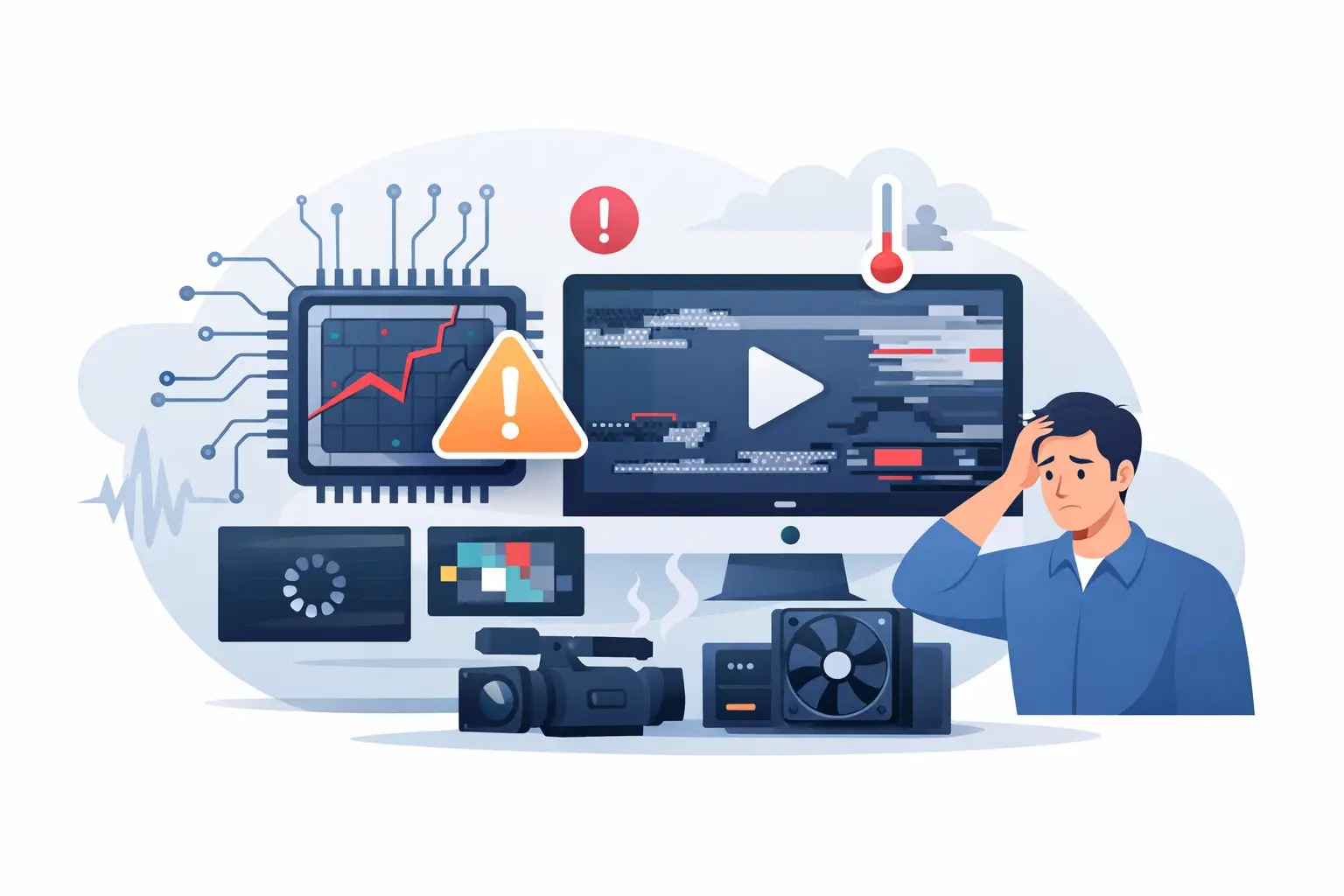
A wall can look like it has a bad module when the real problem is upstream. A sudden color shift across multiple cabinets, intermittent blackouts, unstable mapping, or a signal that disappears during a show are common video processor failure symptoms. For a rental house, venue, integrator, or production team, that distinction matters. Replacing modules will not correct a processor that is dropping sync, corrupting output, or developing problems under load.
The pressure is usually immediate. The screen worked in prep, then fails after a format change, a cable move, a power cycle, or several hours of operation. The right response is not to start swapping parts at random. It is to isolate the signal path, verify what the processor is actually outputting, and separate a processor fault from receiving-card, cable, power, configuration, or panel-level failure.
Video Processor Failure Symptoms That Point Upstream
A processor problem rarely announces itself with a single, universal error. Symptoms depend on the processor model, LED controller ecosystem, input format, output load, firmware version, and how the wall is configured. Still, certain patterns deserve attention because they affect multiple cabinets or appear at the same point in the signal chain.
Widespread image problems that ignore cabinet boundaries
A failed LED module normally affects one physical module, cabinet, or a repeatable section of the display. Processor faults often look broader and less obedient to those boundaries. You may see the entire wall take on a green, magenta, or washed-out appearance; image tearing at the same vertical location across several output paths; or a scaled image that is cropped, shifted, or duplicated.
If the problem appears identically on cabinets fed by different home-run cables, do not assume every cabinet developed the same fault. Check the processor output, output mapping, color space, bit depth, and EDID or input-handshake behavior first. A bad configuration can produce symptoms that look dramatic but require no component repair at all.
Intermittent black screens or output dropouts
A processor that boots normally but loses output after warm-up can be difficult to diagnose in a shop test that lasts only a few minutes. In the field, the issue may present as a brief black screen, a frozen frame, an output that returns after rebooting, or one bank of outputs dropping while another stays live.
Heat, marginal power regulation, deteriorating connectors, damaged output circuitry, and firmware instability can all contribute. The trigger is useful evidence. If dropouts occur only after the processor is fully loaded, during playback at a particular frame rate, or after a specific input is connected, document that condition. A repeatable trigger can significantly improve diagnosis compared with a general report that the wall “cuts out sometimes.”
Input lock problems that do not follow the source
An input issue is not automatically a processor failure. A source may output an unsupported resolution, an unstable refresh rate, HDCP-protected content, or a signal outside the processor’s expected range. However, if a known-good source and known-good cable lock reliably on another processor but repeatedly fail on one unit, the processor becomes a likely point of investigation.
Watch for delayed lock, frequent resync events, incorrect source detection, noisy or corrupted preview, and a processor that reports an input but produces no usable LED output. Test with a controlled source at a standard format before blaming the display. This removes a large amount of guesswork from the process.
Random color, gamma, or brightness changes
A whole wall that suddenly looks dim, clipped, overly saturated, or incorrectly balanced may be receiving incorrect output settings. It may also indicate a damaged configuration file, failed calibration data, an unintended operating mode, or a processor that is not applying settings consistently.
Start by saving the current configuration if possible. Then compare processor settings against a known working file and verify the expected color temperature, gamma, brightness limit, output mode, and cabinet mapping. Resetting a processor before capturing its condition can erase clues and create additional recovery work, especially on a wall with custom mapping or calibration.
Do Not Confuse Processor Faults With Other Failures
Professional LED systems have several failure points, and the visible symptom does not always identify the defective part. A disciplined test sequence helps prevent unnecessary module replacement and reduces avoidable downtime.
Begin at the source. Confirm the content device is stable, the output resolution is correct, and the source works on another display path. Then test the input cable and input port. Move next to the processor’s preview or monitor output, if available, because it can show whether the processor is receiving and processing the image correctly before it reaches the LED wall.
From there, check a known-good processor output port and a known-good data cable into a known-good cabinet. If the image becomes stable when the processor is changed but the rest of the system remains the same, that is meaningful evidence. If the problem remains on the same cabinet or data path after changing outputs, investigate the receiving card, ribbon connections, HUB board, module, and cabinet power instead.
This method matters because several common panel faults can mimic processor trouble. A failing receiving card may cause a cabinet to freeze, flash, or show incorrect color. A damaged Ethernet cable may create intermittent data loss. A loose module ribbon cable can produce lines, missing data, or a partial image. A power supply that sags under load can make cabinets behave unpredictably. Each has a different repair path.
A Practical Test Plan Before Sending Equipment for Service
Before removing a processor from service, record the processor model, serial number, firmware version, input format, output configuration, and exact failure behavior. Photos and short video taken during the fault are valuable, particularly when the issue is intermittent. Include whether the unit was cold or warmed up, how many outputs were in use, and whether the failure followed a specific input, output, or cable.
Use known-good test equipment wherever possible. A questionable spare cable or unverified source only adds variables. If the processor supports multiple input and output types, test more than one path, but do not change every setting at once. Make one controlled change, observe the result, and record it.
For rental inventory, it is worth testing processors under representative operating load rather than only confirming that they power on. A unit may pass a basic bench test and still develop problems when driving a large canvas, handling a high-bandwidth source, or operating continuously. The appropriate test duration depends on the application. A processor supporting a casino display or permanent corporate installation may require different evaluation than a backup unit used for occasional small events.
When Further Service or Replacement Is the Practical Choice
Replacement is sometimes the correct decision. If a processor is obsolete, unsupported, physically damaged beyond practical service, or unavailable in time for an event, a replacement or system redesign may be necessary. Compatibility also matters. A newer processor may not preserve existing receiving-card settings, calibration workflows, or established show files without preparation.
But replacement is not automatically the most economical or fastest option. When symptoms suggest a localized hardware issue, configuration problem, connector fault, firmware issue, or other processor-level condition, professional troubleshooting can help determine whether the unit should be serviced, reconfigured, referred for hardware repair, or replaced. The goal is not to force a repair. It is to determine which path makes operational sense based on the evidence.
A credible troubleshooting process should include fault isolation, configuration and signal-path evaluation, functional testing, and documented quality control. For equipment that supports high-visibility events or installations, a successful power-up is not enough. The processor should be tested across the functions connected to the reported failure, with configuration and output behavior evaluated before it returns to inventory.
Protecting Uptime After the Immediate Fix
Many recurring processor problems are not caused by the processor alone. Poor power conditions, inadequate ventilation, damaged connectors, rushed cable handling, unplanned firmware changes, and inconsistent configuration management all increase risk. Keeping verified show files, labeling processor outputs, protecting connectors in transit, and maintaining known-good test cables can reduce the time needed to isolate the next issue.
For larger fleets, track failures by model, serial number, use environment, and symptom. A pattern of input failures after transport or output failures on a particular crew package can reveal a handling or infrastructure problem that a one-off repair will not solve. This is where documented QC and service history become operational tools, not paperwork.
725Co. approaches processor and LED display faults with the same principle: identify the actual failure, determine the appropriate technical path, and verify the result before equipment goes back into a professional environment. When a screen behaves unpredictably, a controlled diagnosis is often more useful than reaching immediately for the first replacement part on the shelf.
The next time a wall shows an unexplained fault, preserve the evidence, isolate the signal path, and test the simplest known-good substitution first. That process helps protect both the show in front of you and the equipment budget behind it.

Jose de Jesus Martinez (Chuy) is the CEO of 725co. LED Repair Professionals, a trusted name in high-quality LED module repair and video wall services. With over 12 years of experience and certification as an electronic engineer, Chuy has built a reputation for excellence, partnering with industry leaders. Under his leadership, 725co is known for precision repairs, transparent service, and a commitment to protecting the long-term value of LED investments.